Presentation backgrounds and ready-made templates
A presentation background sets the mood before you say a word. Start from a template below whose backgrounds already match its palette, or set your own color, gradient or photo on any slide.
- Runs in the browser
- Colors, gradients, photos
- Templates with matching backgrounds
- Works with
- .pptx
- .png
- widescreen
- square
- story
- paper
Use cases
A quick pitch
Begin with the seed round pitch and its bold cover background.
A story or post
Square and story templates with full-color backgrounds for social feeds.
A branded deck
Your colors from the brand kit carried into every background.
Where can I get presentation templates for free?
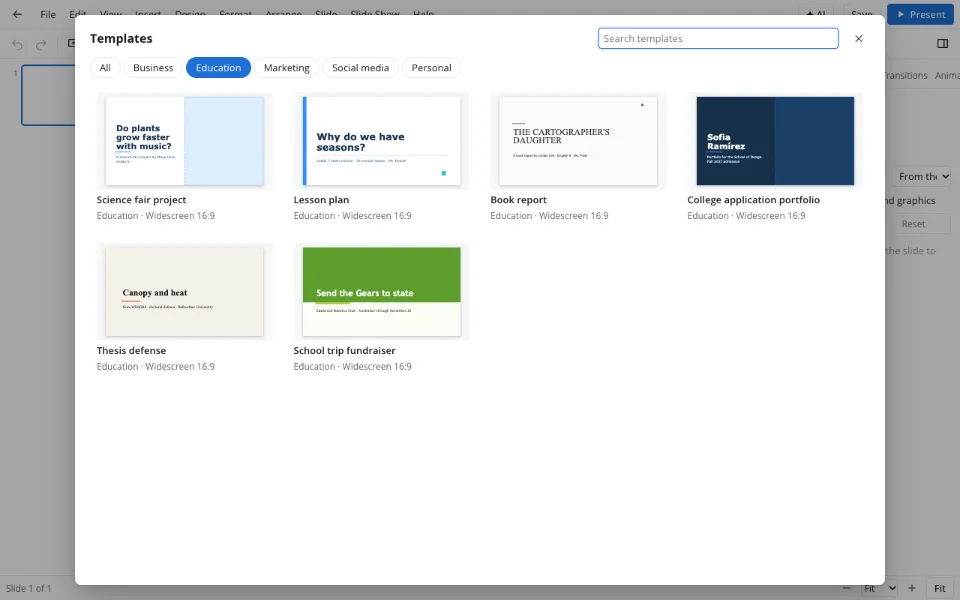
In the Template library inside the editor, free and without watermarks: a seed round pitch, quarterly review, client proposal and team OKRs; a lesson plan, science fair project, book report and thesis defense; an app launch, customer case study, product roadmap and brand guidelines; sale posts, a tips carousel and an event story; a designer portfolio, travel recap and invitations. For school or startup decks, see school presentations and the pitch deck template.
Which presentation background ideas keep text readable?
- A soft gradient between two theme colors on covers and section slides
- A full-bleed photo at forty to sixty percent transparency behind a short title
- A subtle pattern on title slides only, plain backgrounds elsewhere
- Dark backgrounds for screens, light ones for anything printed
How do I use my own presentation background images?
Choose a picture under Design → Format background, decide whether it stretches or tiles, then raise its transparency until the text pops. A photo you've taken yourself usually beats stock imagery, and a slightly blurred or darkened version makes titles far easier to read.
How do I keep presentation background design consistent?
Set the background once and Apply to all, or save colors and fonts in Design → Brand kit… so every deck starts on-brand. Template decorations are ordinary shapes, so you can move, recolor or delete them without breaking anything.
How to set a presentation background
Choose a template, or keep your deck
File → Template library… if you want a designed start; otherwise stay in your own presentation.
Open Format background
Under Design: solid color, gradient, pattern or picture, with transparency for photos.
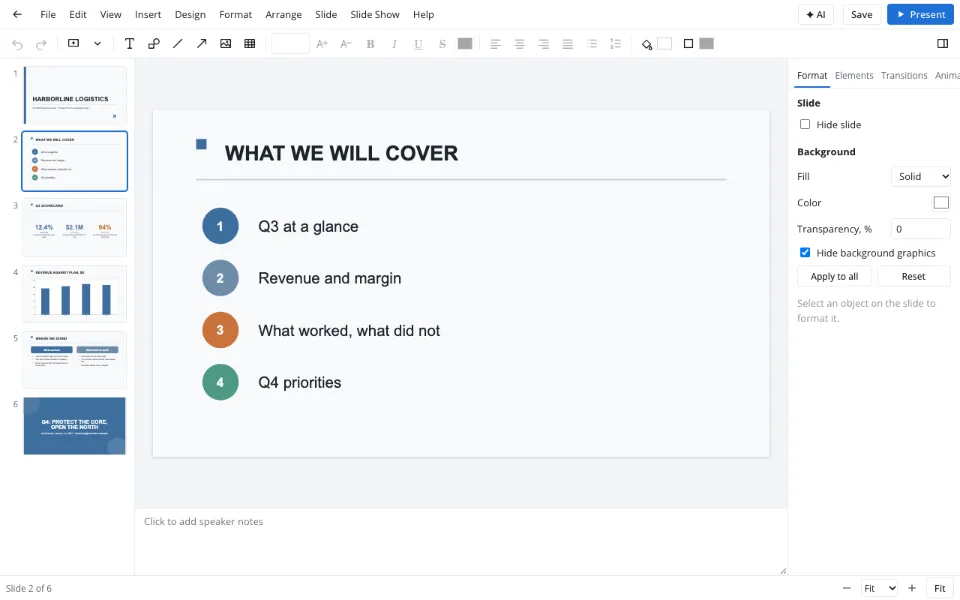
Apply to one slide or all
Leave it on the current slide or click Apply to all; Reset returns the theme background.
Features
| Feature | What it gives you |
|---|---|
| Format background | Color, gradient, pattern or picture, per slide or for all |
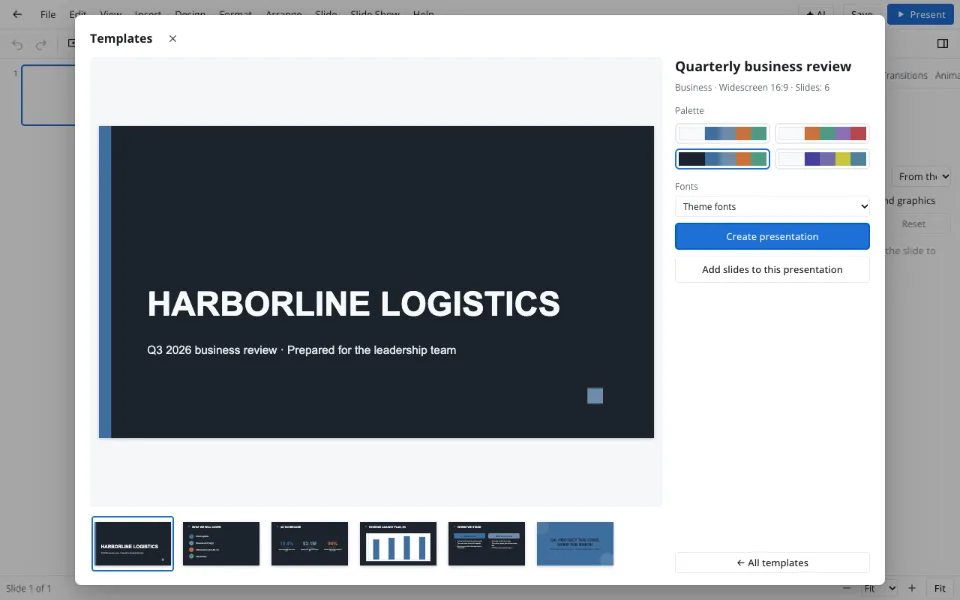
| Template library | Designed decks, each in four palettes, searchable by name and tag |
| Brand kit | Up to six colors, two fonts and a logo for every deck |
| Recompose | Templates adapted to square, story and paper sizes |
Privacy
Templates open and are edited in your browser. Photos you add for backgrounds stay in the deck on your device and reach the Zotu cloud only after you sign in and save, under GDPR.
FAQ
Support: [email protected]
What is a background in a presentation?
The background is the layer behind everything on a slide — a color, gradient, pattern or picture. A good one sets the tone without fighting the text. Set it under Design → Format background for one slide or all of them; templates arrive with backgrounds matched to their palettes.
How do I change the background of a presentation?
Open Design → Format background, pick color, gradient, pattern or picture and adjust transparency if needed. It applies to the current slide; click Apply to all to use it everywhere. Reset brings back the theme's own background if you change your mind.
How do I use a presentation template?
Open File → Template library…, pick a template and a palette, and click Create presentation. Then type over the sample text: it's already the right length, so the layout holds. Delete slides you don't need and duplicate the ones you do with Ctrl+D.
How do I change a deck's template?
Use Design → Themes or Variants to switch the look of every slide at once, or apply your brand kit to swap in your colors and fonts. To borrow designed slides from a template of the same size, open it in the library and choose Add slides to this presentation.
How do I create my own master template?
Set colors and fonts under Design and save them as your brand kit, then build a cover, a section slide, a content slide and a closing slide and save the file. Reopen it and make a copy for each new deck — that's your reusable template.
Are there limits to the template library?
It's a focused collection rather than hundreds of near-duplicates: each template works in four palettes and with your brand colors. Social and paper templates add slides to decks of the same size, and very large files over forty megabytes won't open.
Is it free? Is there a watermark?
Templates, themes, backgrounds and downloads are all free and never add a watermark. Your decks can be used commercially without attribution. AI operations are the only paid feature in Zotu, and you don't need them for templates or backgrounds. Your decks can be used commercially without attribution.
Is it safe to upload documents?
You don't need to upload anything to use a template — it opens in your browser. Photos and logos you add stay in the deck on your device and reach the Zotu cloud only if you sign in and save, where data is handled under GDPR.
More tools
Pitch deck template
Six slides that frame an investor conversation.
School presentation
Templates, ideas and an outline for class decks.
AI presentation maker
A first draft with speaker notes from a short brief.
PPTX viewer
Read and fix a deck from an email on any computer.
PPT to PDF
A read-only handout anyone can open.
Slideshow maker
Photo loops and deck presenting without software.
Presentation animation
Transitions between slides and effects on objects.
Presentation backgrounds and ready-made templates
Backgrounds and designed decks for reports, pitches and posts.
Open the editor